

A Payhere storefront brings your payment links together on one branded page. Customers can read a short explanation, choose an offer and pay. You can use it as a simple sales page or link to it from a website that is difficult to change.
For example, a coworking space could show a day pass and a monthly membership. A teacher could list a workshop and ongoing lessons. Keep the choices focused on what customers need, rather than showing every payment link you have ever created.
Before you start
Connect your Stripe account to Payhere and create the payment links you want to display. Gather your logo, an appropriate banner image, a short description and a support contact. Check the shop overview and current pricing for the present offer, especially if you want a custom domain. Old launch articles describe plans and fees that should not guide your setup.
1. Choose and organise your offers
Create a separate link for each service or billing option. A one-off day pass and an ongoing monthly membership need different descriptions. If you offer a fixed payment plan, make its total and end condition clear; it is not the same as an unlimited subscription.
Open Storefront in Payhere and select the saved payment links you want to include. Arrange them in a sensible order, with the most useful choice first. Drag the handle beside an item to reorder it, or remove an item from the displayed list.
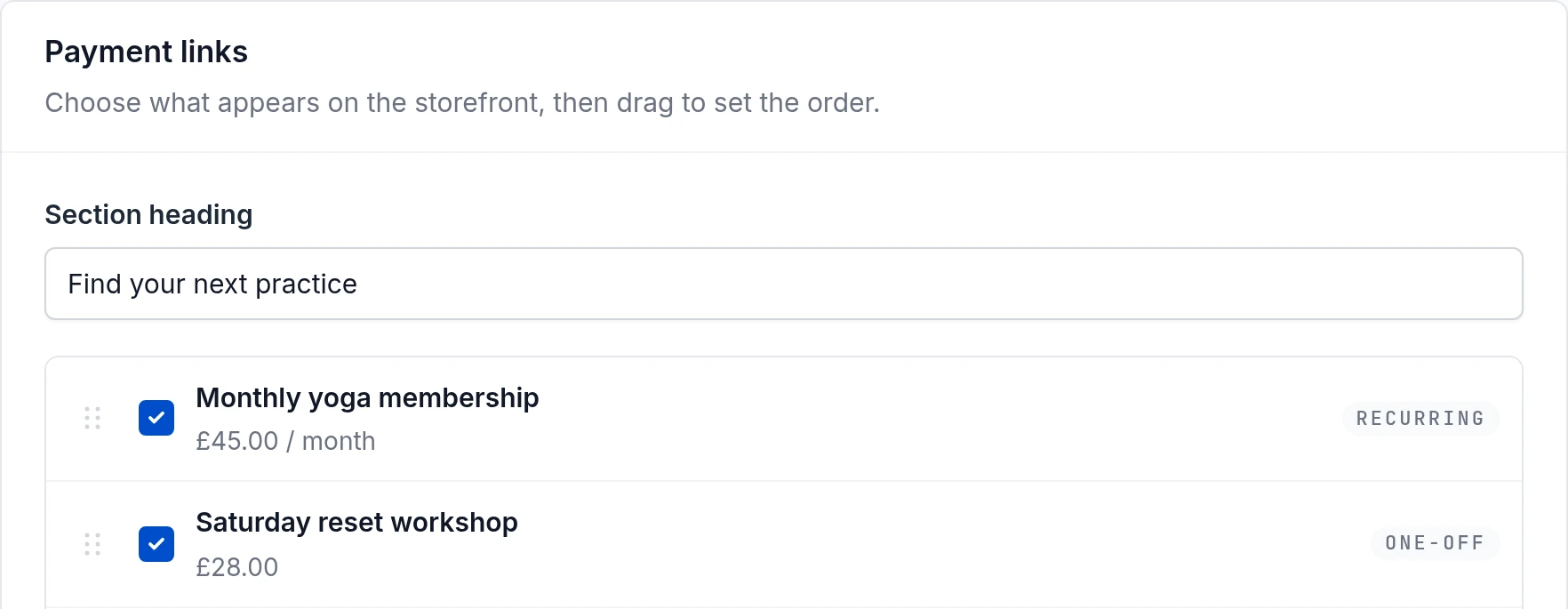
2. Add your branding and useful information
Choose a layout in your builder, upload your logo and image, and set a primary colour. Choose the layout that leaves your offer easiest to read.
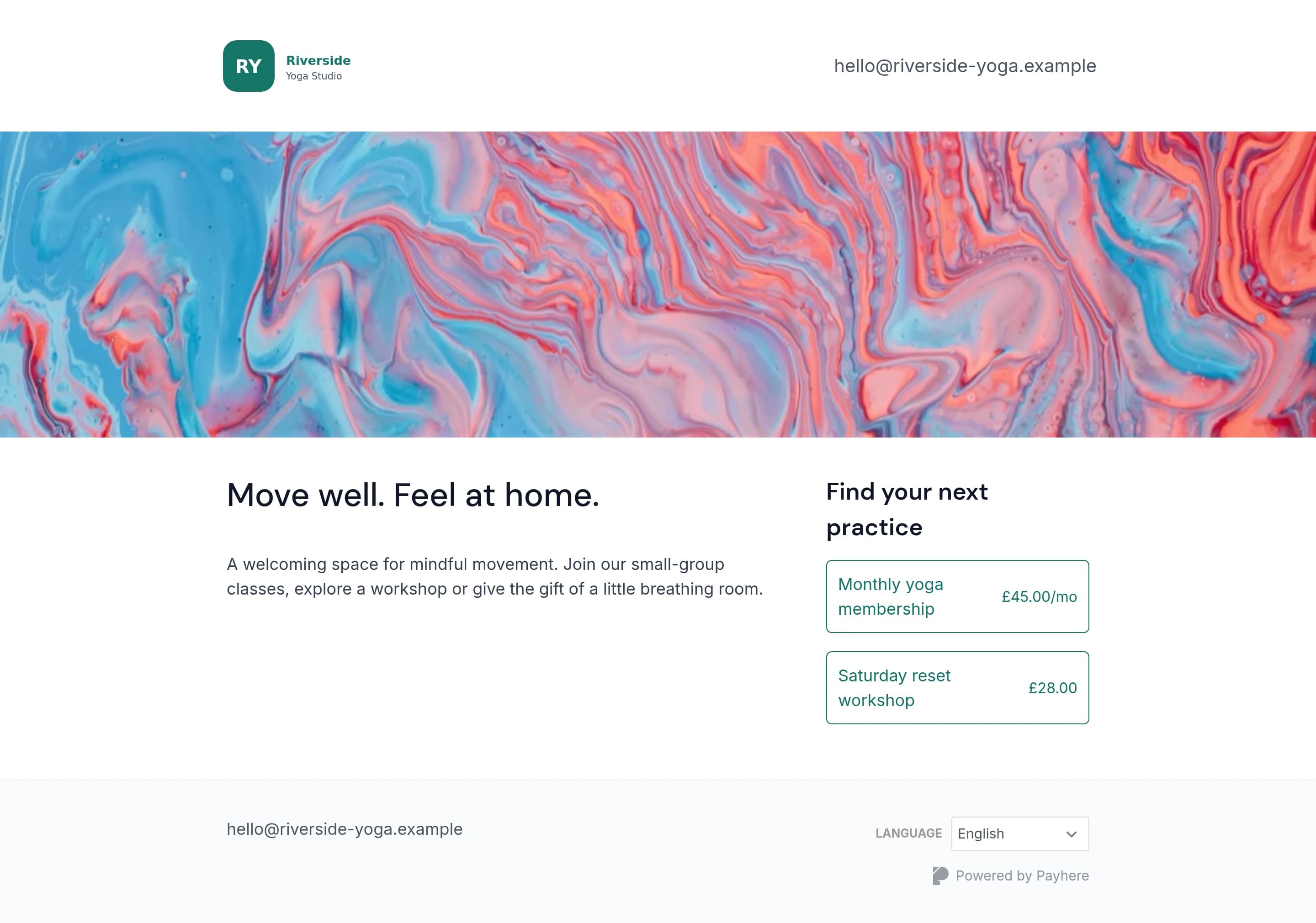
Write a title and a short introduction explaining who the page is for. Give the offer section a useful heading: “Choose a workspace pass” for a coworking space, or “Choose how to give” for a fundraiser. Include a support email and any other relevant contact details.
Choose your hosted page address. If you want your own domain, follow the current account instructions and check eligibility before changing DNS. Do not rely on the old launch article's domain-purchase service or plan names.
3. Save, review and share
Save your changes, open the public storefront and check each offer. Review the amount, currency and recurring terms, then check the page on a phone. Make sure the support contact and next-step instructions are easy to find.
Copy the storefront address and share it in customer emails, social profiles or a “View services” button on your existing site. If your audience already knows your work from social media, one focused payment page may be enough for the purchase step.
For a visual introduction, the original storefront launch video is retained below. It is a historical walkthrough; follow current account settings for features and pricing.
When a storefront is enough — and when it is not
A storefront can complement a full website rather than replace it. Use your main site for detailed service information, articles or search-led content, and link to the storefront for payment choices. If you only sell one offer, a direct payment link may be simpler.
- An offer is missing: check that the saved payment link is selected for display and that you saved the storefront changes.
- Customers see the wrong schedule: review the underlying payment link, not only the storefront description.
- You need booking, shipping or private content access: plan those processes separately. This guide does not set them up automatically.
- Your domain is not working: check the current domain instructions and DNS configuration before replacing the hosted link you already shared.