
You can add subscription payments to a Bubble app by sending customers to a Payhere payment page. A button workflow opens the payment link; an optional success URL brings them back to your app afterwards. You do not need to build a card form for this flow.
For example, you might sell a monthly coaching group from a Bubble member directory. The payment link collects the subscription. Your app still needs its own process for deciding who can see the coaching materials.
Before you start
You need a Bubble app you can edit and deploy, a Payhere account connected to Stripe, and a defined price and billing schedule. Decide how you will match a payer to a Bubble user and confirm their subscription. Start with manual checks if that fits your volume; any automated account update is a separate integration, not part of this button setup.
1. Create your subscription payment link
In Payhere, create a recurring payment link. Enter the name, price, currency and frequency. Make the description specific: “Monthly coaching group, including two live sessions” is clearer than “Premium”. Save and copy the payment link.
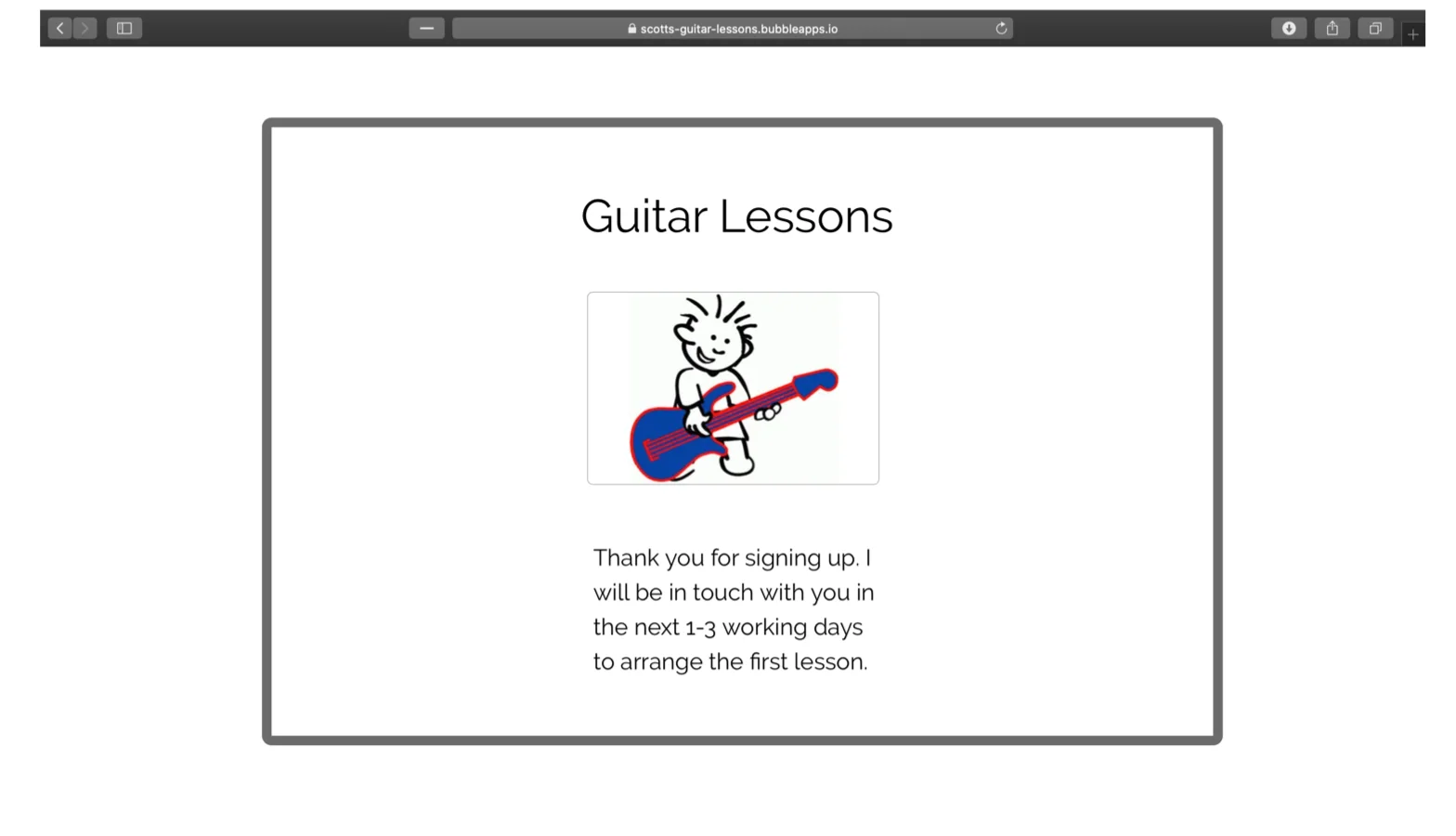
If you want a return journey, create a public next-step page in Bubble and set its address as the success URL in Payhere's advanced settings. Explain when access will be provided. See the recurring payment guide for billing details.
2. Connect the Bubble button workflow
Add a button with a label such as “Join the monthly coaching group”. Open its workflow and add a navigation action to Open an external website. Paste the full Payhere payment link into the destination field. Bubble's editor labels may differ from the original example below.
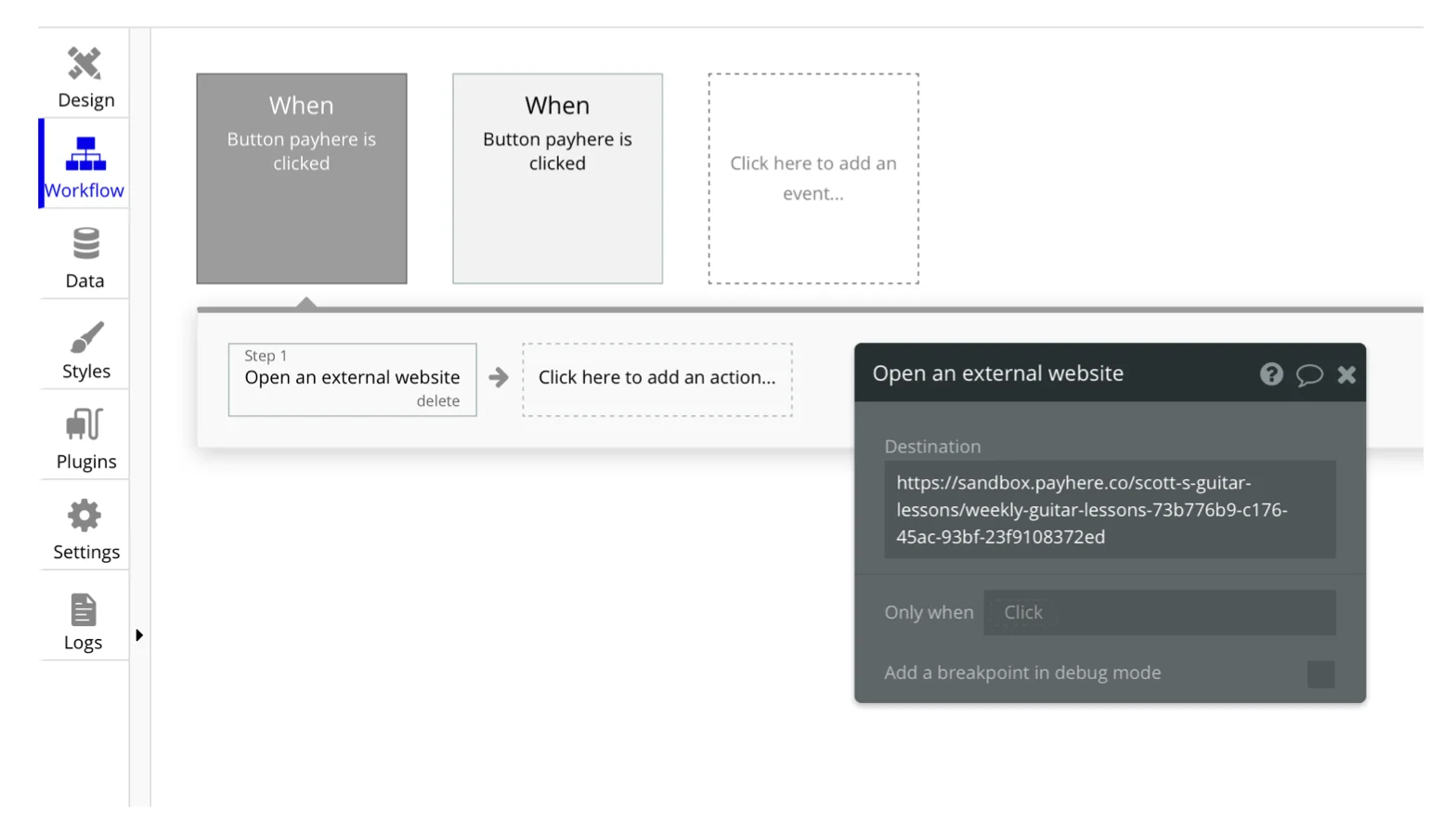
Keep the amount and renewal frequency beside the button. If you have several plans, use a different saved link for each one rather than sending every customer to the same offer.
3. Test the published payment and return flow
Deploy your changes and open the public app as a customer. Check that the button opens the right payment page. Review the currency and recurring terms, and check the success URL if you configured one. Make sure the return page gives a useful next step even if you grant access manually.
Troubleshooting and limits
- The button does nothing: check the click workflow and the full destination address in the deployed version, not only Bubble's development version.
- Customers return to the wrong app version: check whether the success URL points to your test or live Bubble page.
- A visitor can open the success page without paying: that is expected for a public page. Never grant paid access solely because someone visits it.
- You need automatic access changes: design a trusted payment-status integration and handle renewals, failed payments and cancellations. A redirect alone cannot do this.
The Bubble integration page provides the original visual walkthrough. If you only need to collect subscriptions, keep the first version simple and verify payments in Payhere.
Create a subscription payment link for Bubble