Site Builders
WixWebStartsApp Builders
BubbleGlide AppsTools
QwilrZoomGuides
10 fundraising ideas for sports teams, without a sales catalogueAdd payment links to your WebStarts websiteChurch fundraiser ideas for youth: trips, camps and retreatsCreate payment plans, minimum terms and free trialsCreating a one-off donation payment linkCreating a recurring donation payment linkCreating a recurring payment linkCreating your Payhere storefrontEmbed your Wix recurring payment linksGet paid on Zoom with Payhere payment linksHow to create a coupon code in PayhereHow to make a gift certificate and sell it onlineHow to monetize your community with recurring paymentsHow to sell online courses without a big course platformHow to send an invoice with a payment linkIf you are a creator, how do you get paid?Is Stripe good for small business? A simpler way to use itNo-code subscription payments using Bubble and PayherePayment link advanced settings and brandingSmall church fundraising ideas you can run this monthUsing custom fields to collect more informationUsing Payhere with QwilrAccept Payments & Subscriptions using Bubble with Payhere
We have been speaking to many of our users who use the no-code/ low-code platform Bubble, if you haven't used it, definitely check it out! It allows anyone the ability to design, develop and host fully functional web apps. Our users have been successfully using Payhere to setup recurring payments in Bubble either for themselves or their client. They see by using Payhere that this experience is extremely fast and very easy to implement. Within this post we will show you, using a very simple project example, how Payhere can help get payments setup within your app quickly!
1. Create your plan within Payhere.
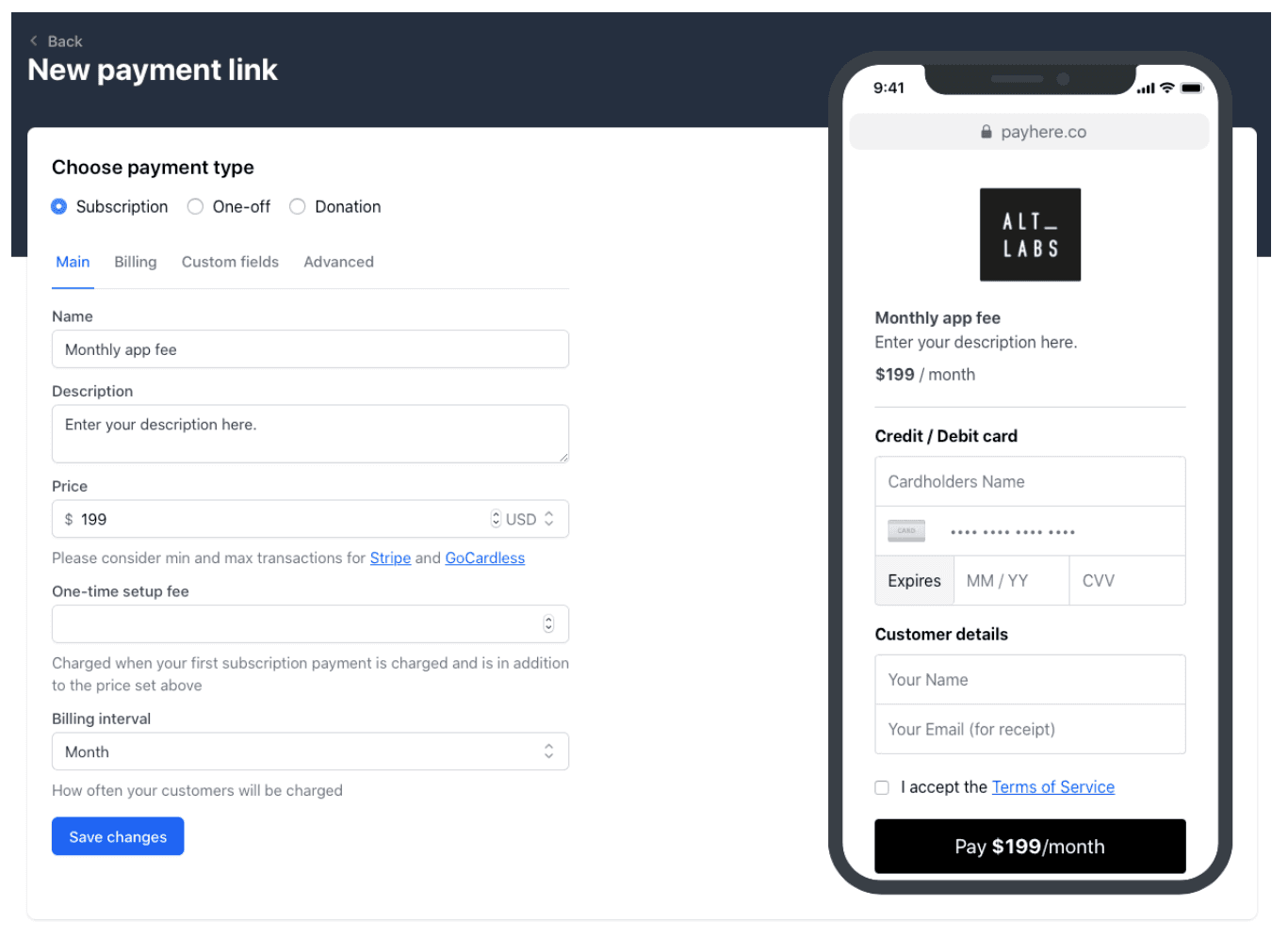
Within our plan builder you can choose if you want a weekly, monthly, or yearly recurring plan. Enter the rest of your details such as name, amount etc and then save the plan.
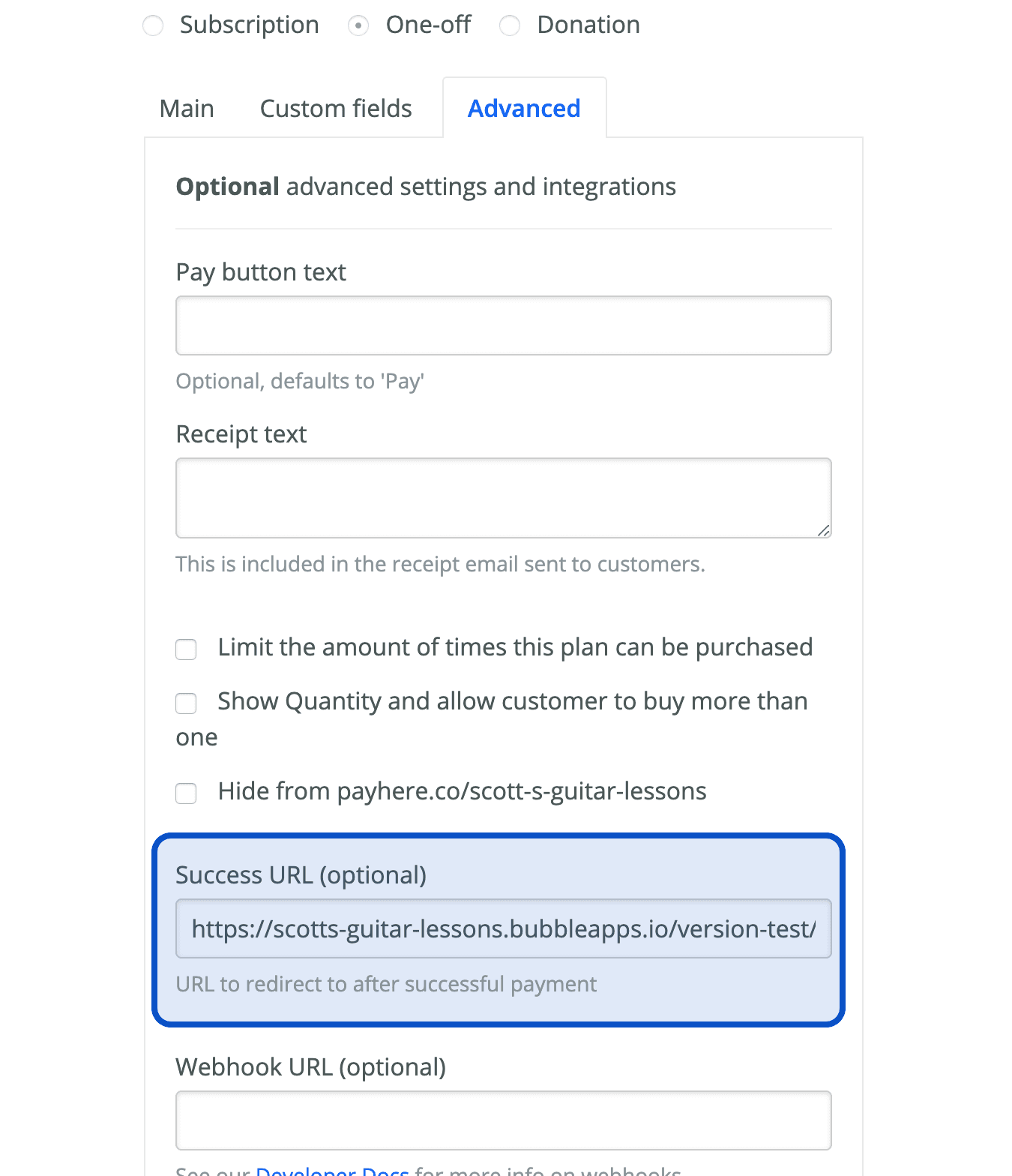
If you want to direct your customer to a certain page after a successful payment (thank you page, create password etc) now is the time to do so. Within plan creation, select advanced and you will see where you can enter the success URL.
You can then copy the link that we have created for you to your payment page.
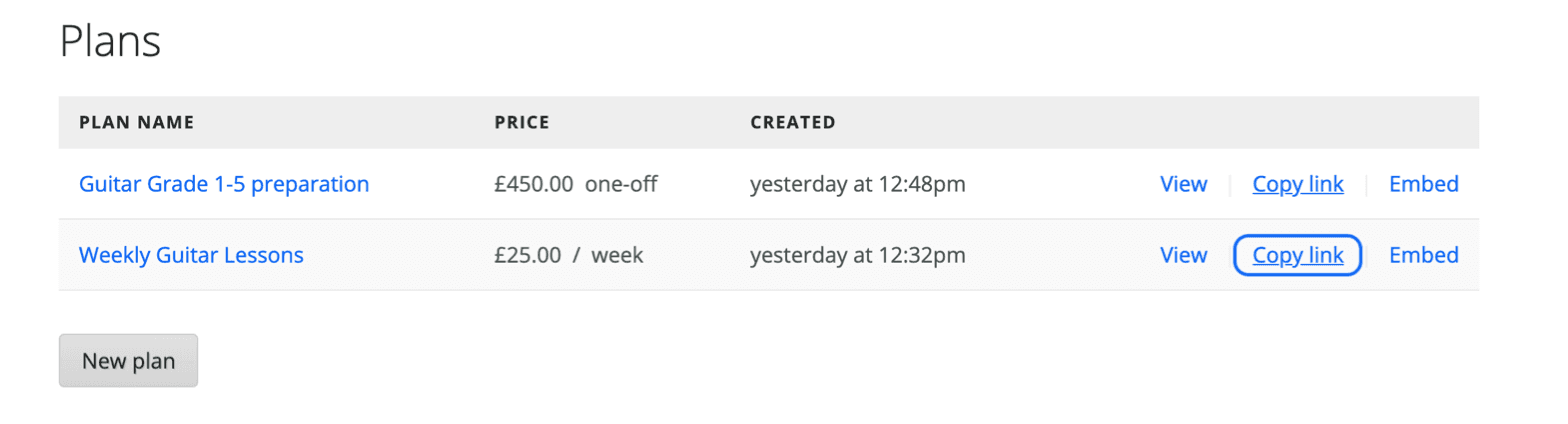
2. Link button on Bubble out to plan URL
Once you have created your button on Bubble right click on it and open the start/edit workflow Then click through on the following- add action, navigation, open external website and enter the URL in the description box as shown below.
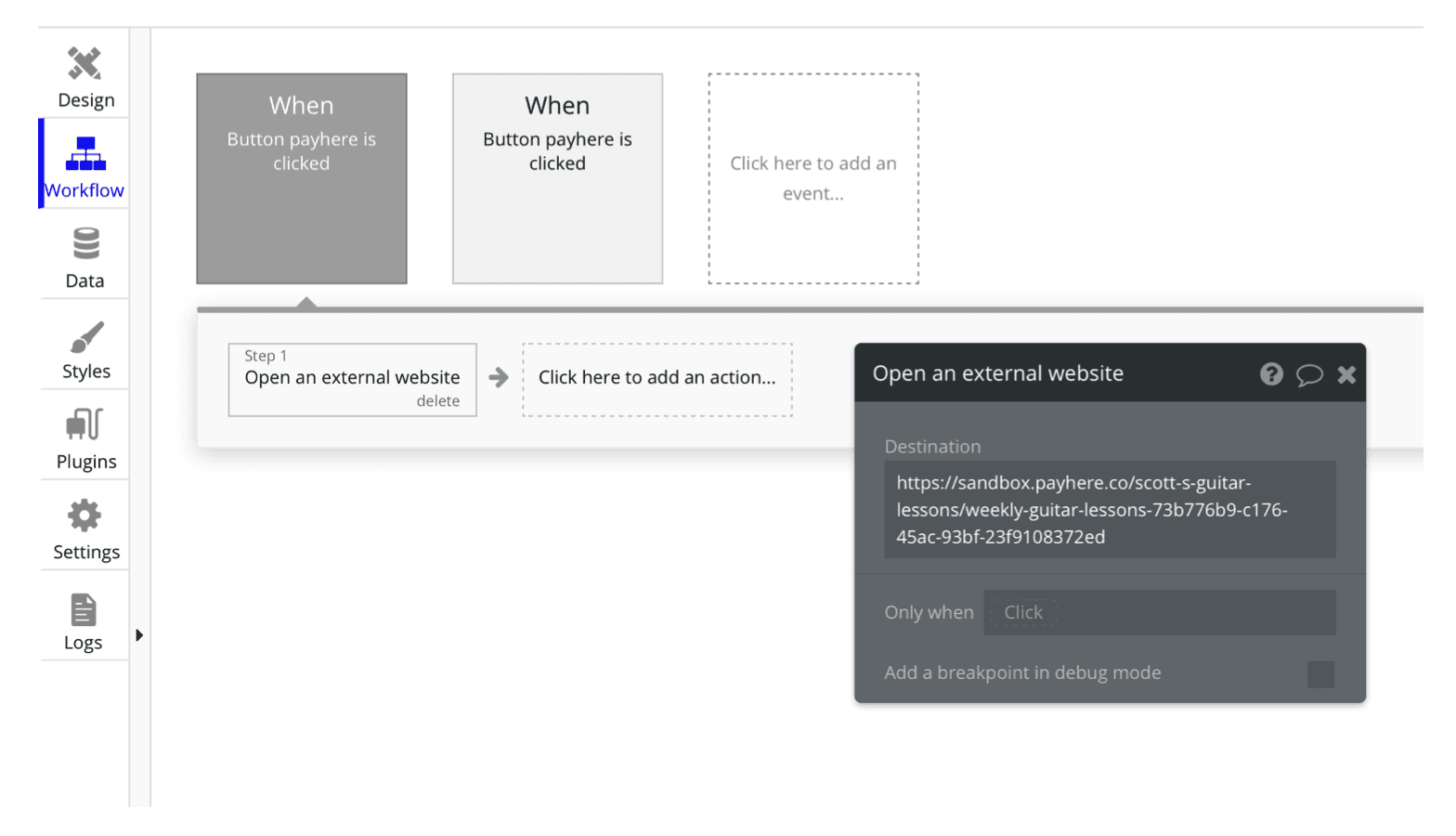
3. Payments are ready to go!
When your app is live and the button is pressed they will be taken to the Payhere payment page to enter details.
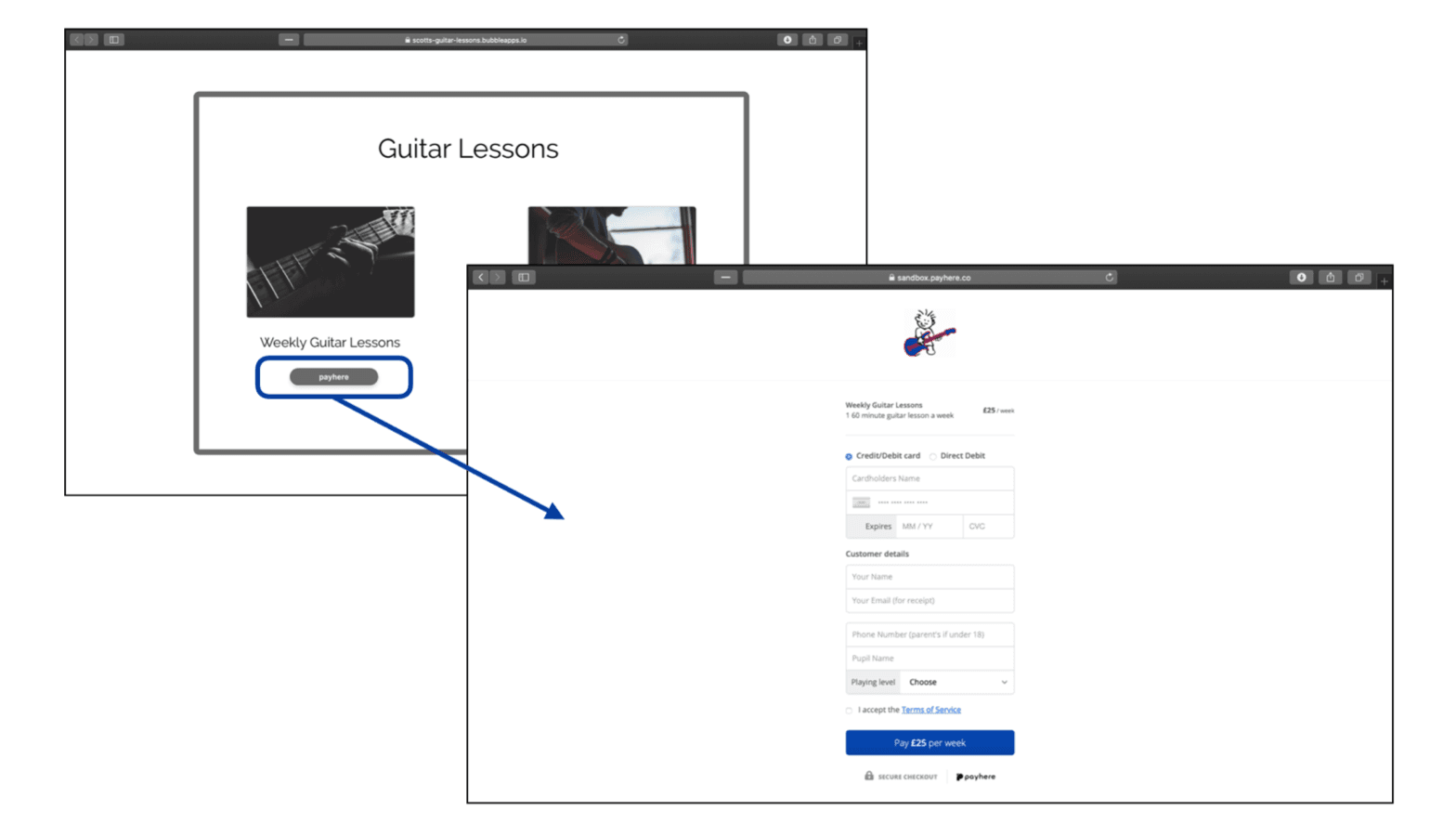
4. Redirect to your selected page after payment.
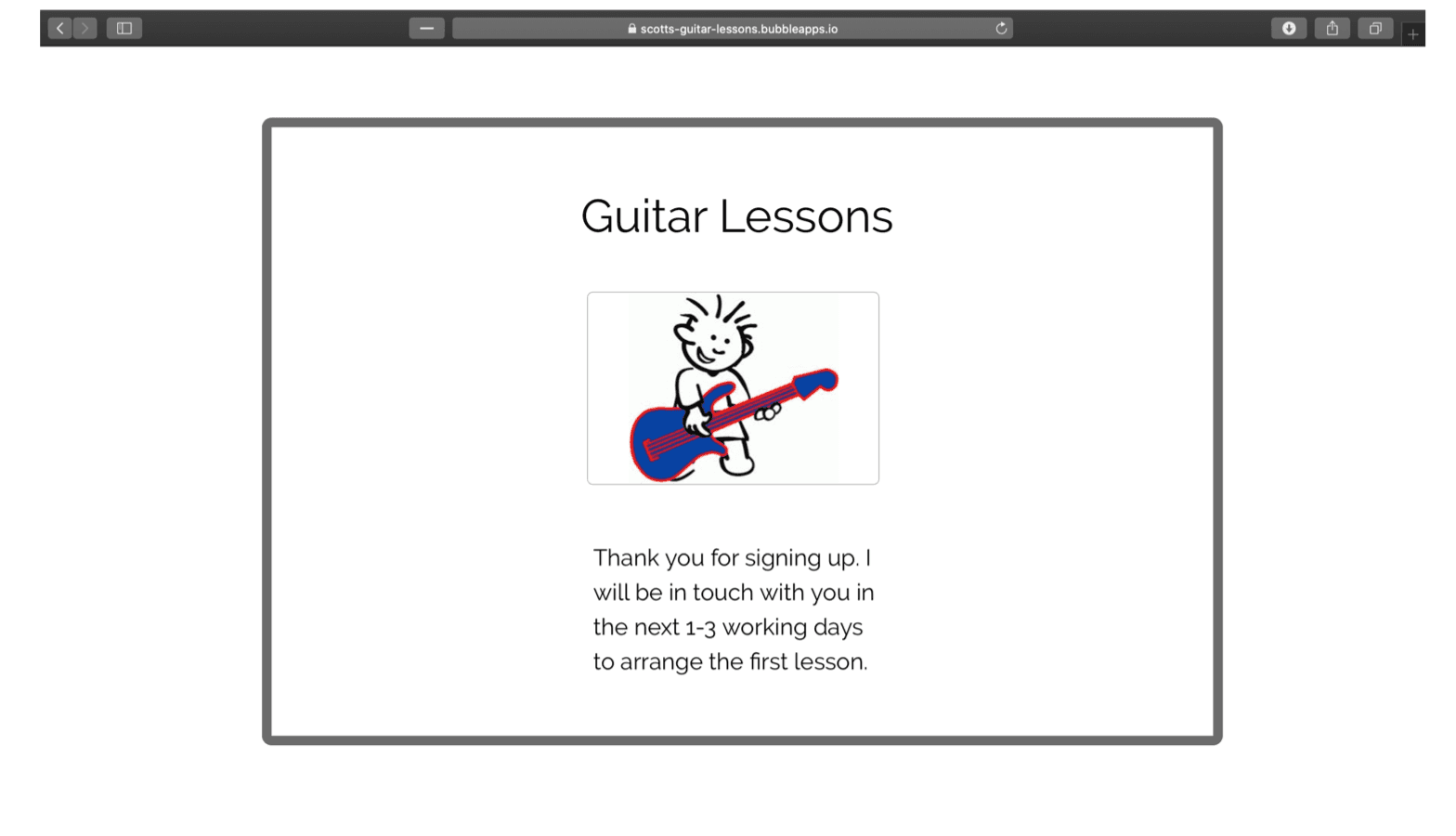
In this case I simply created another page within Bubble that displays the message that I need to tell my recently signed up customer. This of course could be the next step within an onboarding flow.