
You do not need to collect card details on a call. Create a Payhere payment link, share it with your customer, and let them pay on the payment page in their browser. This works for lessons, consulting sessions, personal training and workshops delivered over Zoom.
Our earlier Zoom lesson example used two offers: a one-off introductory guitar lesson and recurring weekly lessons. Keep those separate so a new student does not accidentally start a subscription when they only want to try one class.
Before you start
Connect your Stripe account to Payhere. Decide your session price, currency, cancellation policy and when payment is due. You also need a way to send the link: Zoom chat, an email or a booking confirmation. This is a shared-link workflow, not a Zoom booking or admission integration.
1. Create the right payment link
Use a one-off link for a single session or workshop. Use a recurring link for an ongoing arrangement with a clear billing frequency. For example, a £20.00 introductory lesson and a £20.00 weekly lesson subscription need separate descriptions and links.
If you are collecting voluntary support rather than selling a session, use a donation payment link instead. Explain whether the amount is fixed or chosen by the customer. See recurring payments for subscription setup.
2. Share the link with a clear request
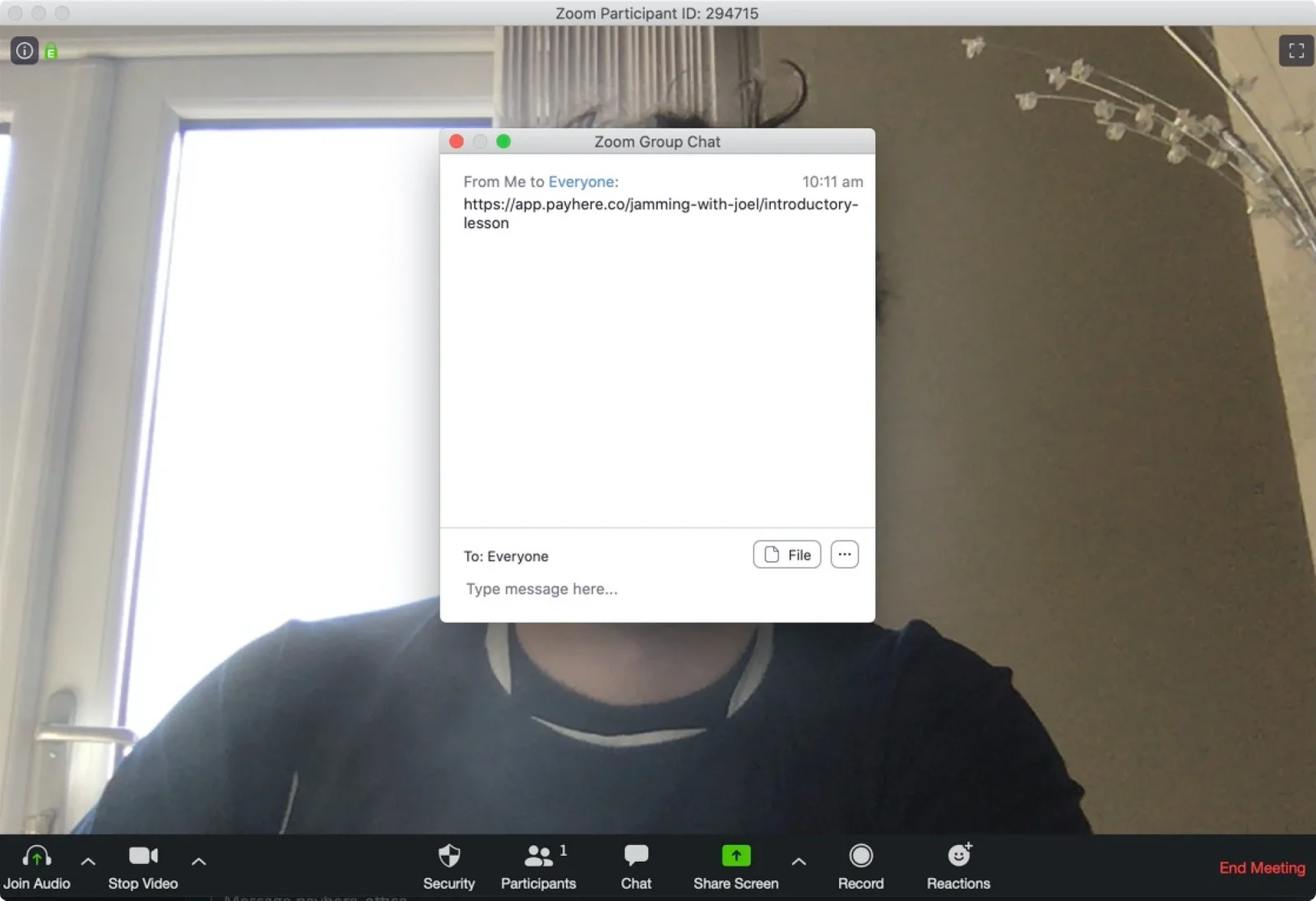
Copy the saved payment link. If payment is required before the session, send it in advance rather than waiting for the call. During a call, paste it into Zoom chat and say which offer it covers.
For example: “Here is the payment link for today's introductory lesson. It is a one-off payment of £20.00, not a weekly subscription.” Check your chat recipients before sending, especially in a group call.
3. Confirm payment and arrange the next session
Your customer opens the payment page and completes payment there. Check the payment in Payhere before treating the session as paid. Do not ask the customer to read card details aloud or post them in chat.
For recurring lessons, explain the renewal schedule and how to contact you about cancellations or timetable changes. Billing and attendance are different: keep your own lesson calendar and communicate missed-session terms before the customer subscribes.
Troubleshooting and limits
- Chat is disabled or a customer cannot find the link: send the same payment link by email. Do not rely on everyone keeping the meeting chat after leaving.
- A customer says they paid: check the payment record and confirm which email they used before asking them to try again.
- You need payment to unlock a meeting: sharing a payment link does not restrict Zoom entry or automatically send invitations. Use a separate booking or admission process.
- A payment is complete but funds are not yet in your bank: payment confirmation and processor payout timing are different. Check your Stripe payout information.
The Zoom integration overview shows the basic chat-to-payment journey.
Create a payment link for your Zoom sessions